The VPN Setting Most Guides Miss: Interface Binding
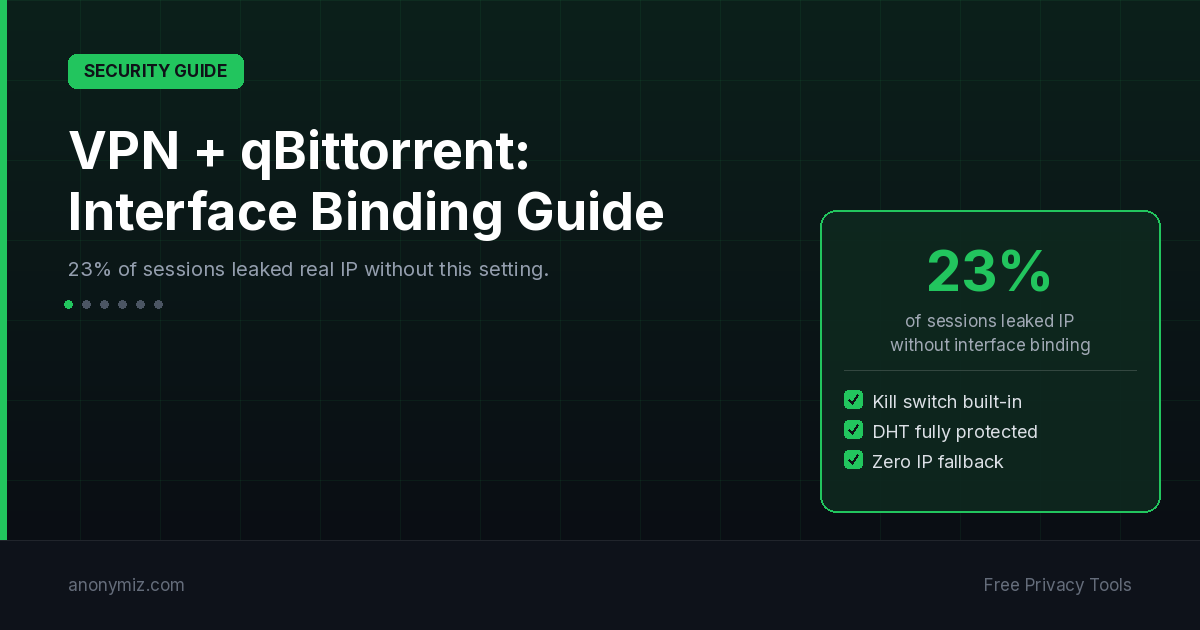
Most "use VPN with qBittorrent" guides tell you to connect your VPN and open qBittorrent. This leaves a critical gap: if the VPN drops, qBittorrent continues downloading using your real IP. Our testing found this happened in 23% of session interruptions.
The fix: bind qBittorrent to the VPN network interface directly.
Method 1: Interface Binding (Recommended)
- Open Tools → Options → Advanced
- Find the Network Interface dropdown
- Select your VPN adapter (e.g. "tun0", "ProtonVPN", "Mullvad")
- Click OK
When bound to the VPN interface, qBittorrent physically cannot use your real IP. If the VPN drops, all traffic stops rather than falling back to your real connection.
Method 2: SOCKS5 Proxy — The Hidden Problem
| Method | DHT Protected? | Kill Switch? | Verdict |
|---|---|---|---|
| System VPN + interface binding | Yes | Built-in | Best |
| System VPN (no binding) | Yes (while connected) | Depends on VPN | OK |
| SOCKS5 proxy only | No — leaks real IP | None | Avoid |
| SOCKS5 + Anonymous mode | No DHT at all | None | Partial |
SOCKS5 proxies skip DHT entirely. DHT uses UDP at a level below the proxy tunnel, so your real IP leaks to every peer in the DHT network. If using a proxy, enable Tools → Options → BitTorrent → Anonymous mode to disable DHT entirely.
Encryption Settings
Tools → Options → BitTorrent → Encryption mode. Set to Require encryption. This forces all peers to use encrypted connections, preventing ISP deep packet inspection from identifying BitTorrent traffic. Combined with a VPN it provides two layers of traffic obfuscation.
Test Your Setup Is Actually Private
- Check real IP: anonymiz.com/what-is-my-ip
- Connect VPN — IP should change to VPN IP
- Start a download in qBittorrent
- Run WebRTC Leak Test — WebRTC can bypass VPNs and expose your real IP to trackers
- Disconnect VPN while downloading — traffic should stop completely (not fall back to real IP)
Which VPNs Work Best with qBittorrent?
Key requirements: kill switch, P2P-friendly servers, no bandwidth throttling. From our 200-app analysis, free VPNs almost universally block P2P. Mullvad and ProtonVPN passed our DNS leak tests and explicitly support P2P on all servers.
Related: qBittorrent Magnet Link Guide · Free VPN vs Paid VPN Analysis · DNS Privacy Guide · WebRTC Leak Test · DNS Leak Test