
Trackers are servers that help torrent clients find peers. More working trackers means more peers discovered, which means faster downloads and fewer stalled torrents. This guide covers every method for adding trackers to qBittorrent — from individual torrents to site-wide automatic tracker injection.
What Trackers Do
A BitTorrent tracker is a server that maintains a list of peers (uploaders and downloaders) for a given torrent. When your client announces to a tracker, the tracker tells it the IP addresses of other peers downloading the same torrent. Your client then connects to those peers directly to exchange data. Torrents can also find peers without any tracker at all — see how DHT works for the trackerless alternative.
Public trackers are open to everyone. Adding a comprehensive list of them to every torrent dramatically increases the number of peers your client can find, especially for torrents with few or no listed trackers.
Method 1: Add Trackers to a Specific Torrent
Use this when one particular torrent is slow or stuck.
- Right-click the torrent in qBittorrent's main list
- Select Edit Trackers
- In the tracker list window, click at the end of the existing trackers
- Paste your tracker URLs, one per line
- Click OK
The client will immediately start announcing to the new trackers and should find additional peers within seconds.
Method 2: Automatically Add Trackers to All New Torrents
This is the best long-term setting — every new torrent you add gets the full tracker list automatically.
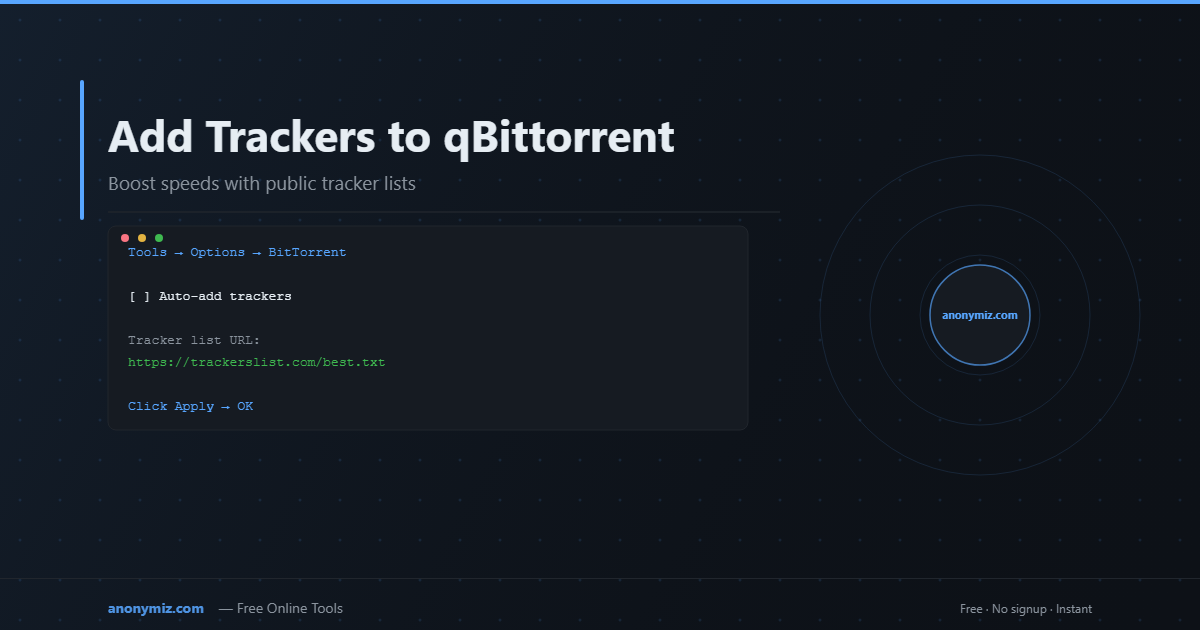
- Open qBittorrent → Tools → Options (or Preferences on macOS)
- Go to the BitTorrent tab
- Check "Automatically add these trackers to new downloads"
- Paste your tracker list into the text box below
- Click Apply → OK
Best Public Tracker List for 2026
These trackers are consistently online and handle high traffic volumes:
udp://tracker.opentrackr.org:1337/announceudp://open.tracker.cl:1337/announceudp://9.rarbg.com:2810/announceudp://tracker.openbittorrent.com:6969/announceudp://exodus.desync.com:6969/announceudp://tracker.torrent.eu.org:451/announceudp://tracker.tiny-vps.com:6969/announcehttps://tracker.gbitt.info/announceudp://tracker.dler.org:6969/announceudp://open.stealth.si:80/announce
For a comprehensive auto-updating list, use trackerslist.com which publishes updated tracker lists daily — or see our own best public torrent trackers guide, based on real uptime testing rather than a static list.
Method 3: Use a Tracker List URL
Some qBittorrent builds support pointing to an external URL that auto-updates the tracker list:
- Tools → Options → BitTorrent
- In the automatic trackers field, enter the URL of a tracker list (e.g.
https://trackerslist.com/best.txt) - qBittorrent will fetch and use that list for all new torrents
When Trackers Still Don't Help
If you've added trackers but a torrent is still stuck, the issue is likely zero active seeders — meaning nobody online currently has the file. In this case, trackers can't help because there are simply no peers to connect to.
💡 Alternative: Skip the Client Entirely
If your torrent is stuck even with trackers, try converting the magnet link first using the Magnet to Torrent Converter. It fetches the metadata directly from DHT peers and gives you a .torrent file — often succeeding when clients are stuck.
Checking Tracker Status
To see if your trackers are working, click on a torrent and open the Trackers tab at the bottom of qBittorrent. Each tracker shows its status:
- Working — connected successfully, peers returned
- Not working — tracker is down or unreachable
- Updating — currently announcing
- 0 peers — tracker is up but has no peers for this torrent
Frequently Asked Questions
How many trackers should I add?
10–30 well-chosen trackers is plenty. Adding hundreds of trackers adds minimal benefit and increases announce traffic. Focus on reliable, high-uptime trackers.
Do trackers work with private torrents?
No — private torrents have a flag that disables DHT and external trackers. Only the tracker listed in the torrent file itself is used. Adding public trackers to private torrents violates most private tracker rules.
Why does qBittorrent show "Not working" for some trackers?
Trackers go offline temporarily or permanently. The "Not working" status is normal for some entries — as long as a few trackers show "Working" and return peers, your download should proceed fine.