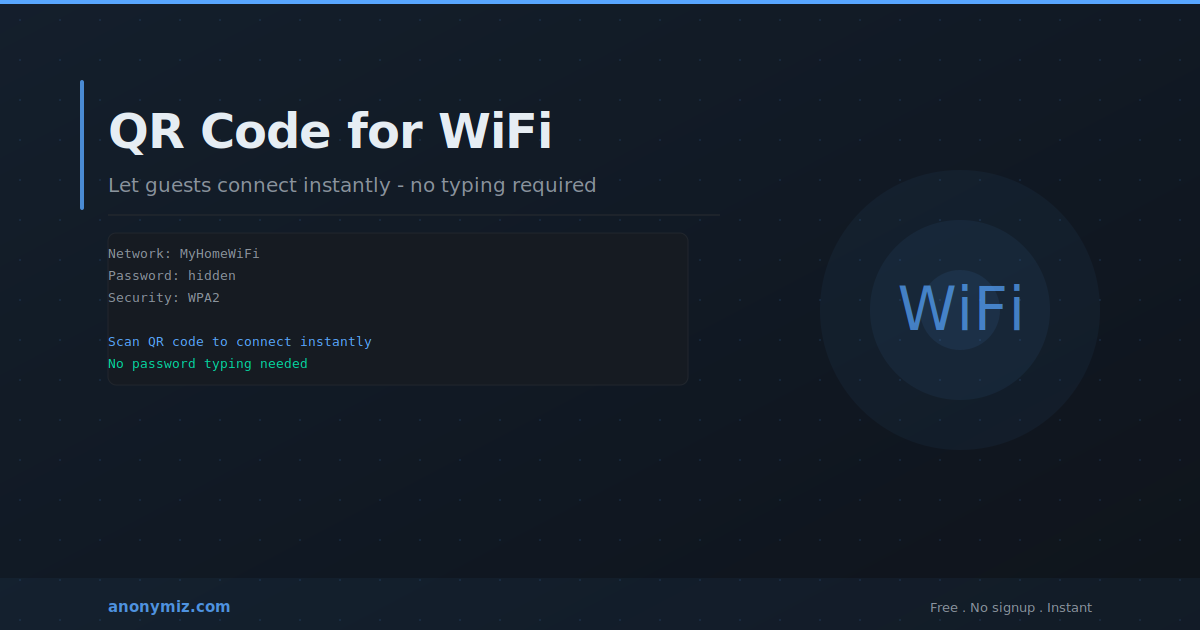
A WiFi QR code lets guests connect to your network by scanning with their phone — no typing, no reading out passwords character by character. This guide explains how WiFi QR codes work, how to generate one in seconds, where to display it, and the security considerations around sharing network credentials via QR code.
How WiFi QR Codes Work
A WiFi QR code encodes your network credentials in the WIFI: format — containing the SSID (network name), security type (WPA2, WPA3, or open), and password. When a smartphone camera scans the code, the operating system recognises this format and offers to connect automatically. On iOS 11+ and Android 10+, WiFi QR scanning is built into the native camera app. The user never sees the password as text — they just tap connect.
How to Generate a WiFi QR Code Free
Go to anonymiz.com/qr-code-generator, select WiFi from the type options, enter your network name (SSID), select the security type (WPA2 for most networks), and enter the password. The QR code generates instantly in your browser — nothing sent to any server. Download as PNG for printing or SVG for scalable design files. No account required.
Where to Display Your WiFi QR Code
Cafes and restaurants — print on table cards or menus. Guests scan and connect without asking staff. Hotels and Airbnbs — print on a welcome card in each room. Offices — display for guest WiFi in reception and meeting rooms. Events — show on screens or print on handouts. Home — a framed QR code near your router is the modern answer to the WiFi password question.
Security Considerations
The QR code encodes your WiFi password. Anyone who scans it gets access to the network. Best practices: use the QR code only for a guest network isolated from your main network. Change the guest password periodically and regenerate the QR code. The password is encoded in the QR data — someone with a QR decoder can extract it, so do not treat the code as hiding the password, just as making it easier to share.
Separate Guest Network Best Practice
Create a separate guest WiFi network on your router — isolated from your main network — and generate the QR code for that guest network only. Guests get internet access without seeing your other devices, printers, NAS drives, or smart home devices. Most modern routers support guest networks in their settings.
Frequently Asked Questions
Does the QR code stop working if I change my password?
Yes — changing your WiFi password requires regenerating the QR code. The code encodes the password at generation time — it is a static image, not a dynamic link.
Does it work on all phones?
Native WiFi QR scanning works on iOS 11+ and Android 10+. Older Android devices may need a third-party QR scanner app. For maximum compatibility, print both the QR code and the plain-text password as a fallback.