You publish a link on Twitter, in an email newsletter, and on a partner website. All three send traffic to the same page. Without UTM parameters, Google Analytics shows them all as a single blob of traffic. With UTM parameters, you see exactly which source drove which conversions.
What Are UTM Parameters?
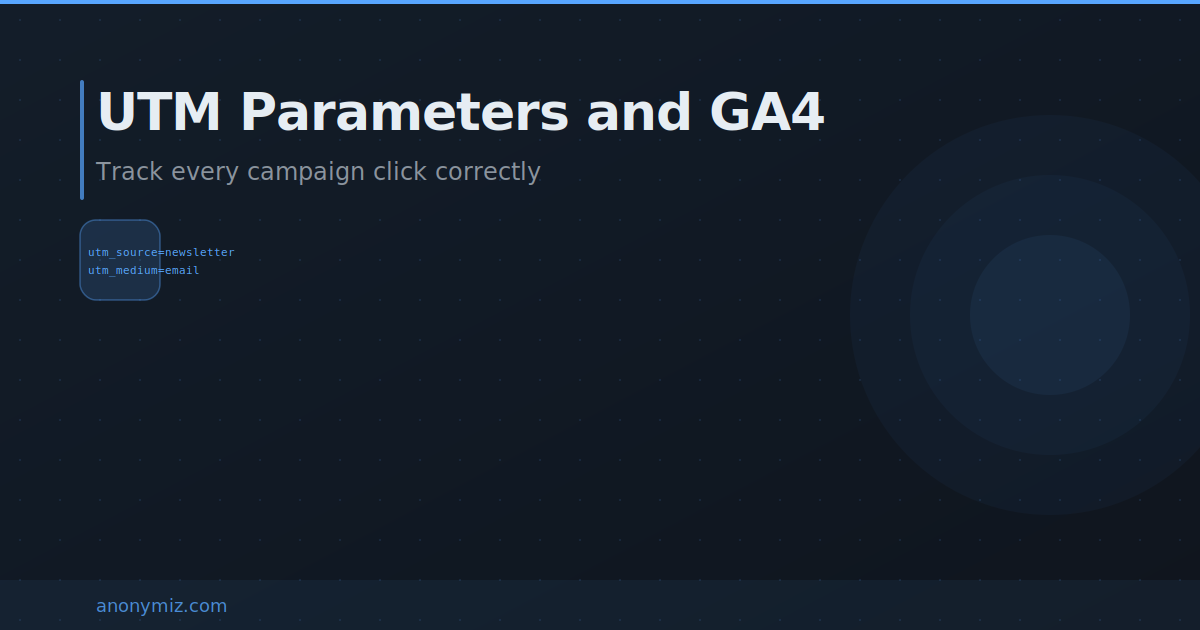
UTM (Urchin Tracking Module) parameters are tags you add to a URL that tell Google Analytics where a visitor came from. They look like this:
https://yoursite.com/pricing?utm_source=newsletter&utm_medium=email&utm_campaign=june2026The 5 UTM Parameters
- utm_source — Where the traffic comes from (google, newsletter, twitter, facebook).
- utm_medium — The marketing channel (cpc, email, social, banner, organic).
- utm_campaign — The specific campaign name (june2026, black-friday, product-launch).
- utm_term — The paid search keyword that triggered the ad (optional).
- utm_content — Used to distinguish between multiple links in the same campaign — e.g. "blue-button" vs "red-button" in an A/B test (optional).
UTM Best Practices
- Always use lowercase — UTM parameters are case-sensitive. "Email" and "email" are tracked as separate sources.
- Use hyphens not spaces — Write
utm_campaign=summer-salenotutm_campaign=summer sale. - Be consistent — Decide on naming conventions and stick to them. "twitter" and "Twitter" and "tw" all create separate entries.
- Never add UTMs to internal links — UTMs on links within your own site override the original traffic source, breaking your attribution data.
How to Build UTM Links
Use Anonymiz UTM Builder to generate properly formatted UTM links in seconds. Enter your URL, fill in the parameters, and copy the tracked link. Free, no account needed.
Why Google Ads Doesn't Need Manual UTM Tags
Google Ads has its own auto-tagging system using a gclid parameter, separate from manual UTM parameters, which Google Analytics reads automatically to attribute clicks without you adding utm_source and utm_medium by hand. Manually adding UTM tags to Google Ads links alongside auto-tagging can actually create duplicate or conflicting attribution data, which is why Google explicitly recommends leaving Ads auto-tagging on and reserving manual UTMs for channels that don't have their own tracking system, like email newsletters or printed QR codes.
The Multi-Touch Attribution Problem UTMs Don't Solve
UTM parameters only capture the source of the single click that led to a session — they say nothing about the three other channels someone might have encountered before finally converting on that last click. A customer who saw a social ad, later searched your brand name, then clicked an email link to finally purchase will show up as 100% email-attributed in basic UTM tracking, even though the ad and search touches genuinely contributed. Solving this properly requires a multi-touch attribution model layered on top of UTM data, not UTMs alone.
Where to See UTM Data
In Google Analytics 4: Reports → Acquisition → Traffic Acquisition. You will see utm_source, utm_medium, and utm_campaign in the dimension breakdown.