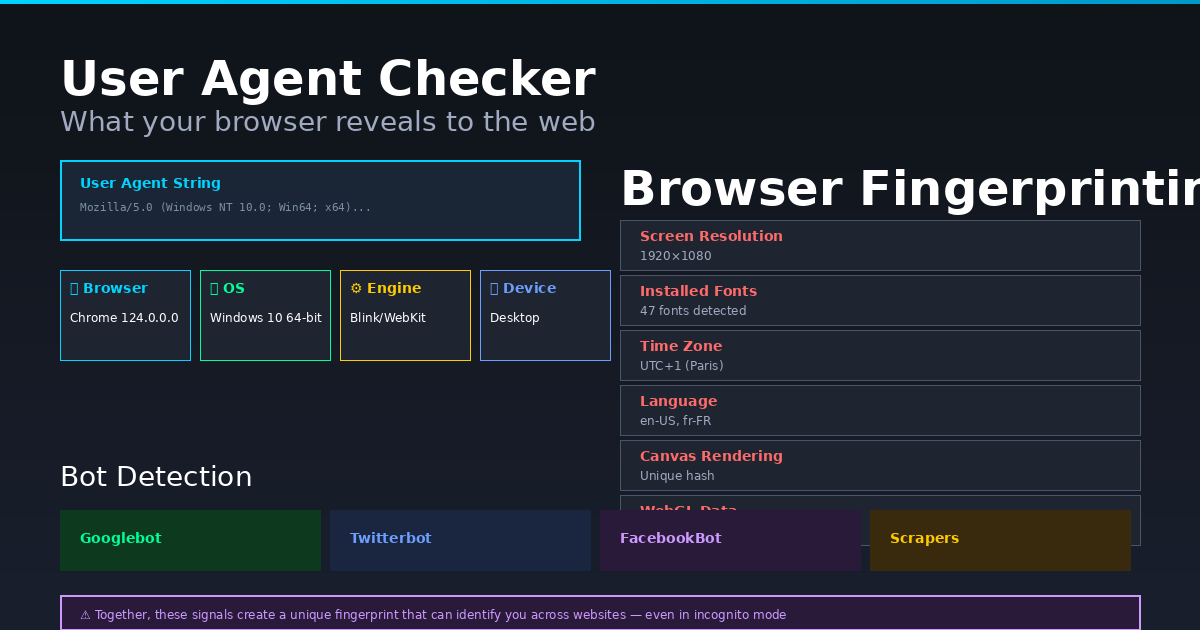
Every time your browser loads a page, it sends a user agent string identifying itself to the server. Most people have never seen it. The User Agent Checker shows your exact user agent string and parses it into browser name, version, operating system, engine and device type — instantly, no install required.
What Is a User Agent String?
A user agent string is a line of text sent in the HTTP header of every request your browser makes. It identifies your browser type and version, the rendering engine it uses, and the operating system and device. A typical Chrome on Windows user agent looks like: Mozilla/5.0 (Windows NT 10.0; Win64; x64) AppleWebKit/537.36 (KHTML, like Gecko) Chrome/124.0.0.0 Safari/537.36.
Web servers use this to serve browser-appropriate content, analytics platforms use it to measure market share, and CDNs use it to optimise delivery. But advertisers and data brokers also use it as one signal in a broader fingerprinting system.
User Agent and Browser Fingerprinting
Your user agent is one component of your browser fingerprint — a combination of dozens of signals that uniquely identify your browser without cookies. Unlike cookies, fingerprints cannot be cleared. Other fingerprint signals include screen resolution, installed fonts, time zone, language, canvas rendering output, WebGL data and battery status. Together these signals can identify a browser with high accuracy across different sessions and incognito windows.
The Browser Fingerprint Checker shows the full picture. The User Agent Checker focuses specifically on what your UA string reveals and lets you parse any UA string to identify what browser or bot it belongs to.
Bot Detection and User Agents
Search engine crawlers, social media bots and monitoring services all send distinctive user agent strings. Googlebot identifies itself as Googlebot. Twitterbot identifies itself when fetching Open Graph data for link previews. The User Agent Checker detects over 20 common bots and crawlers automatically.
Security teams use user agent analysis to detect scraping, automated attacks and fake traffic. If your analytics shows unusual user agents in large volumes, it often indicates bot traffic that should be filtered.
How to Change Your User Agent
In Chrome, open DevTools (F12), go to the Network tab, click Network conditions and uncheck Use browser default. You can then type any user agent string. Browser extensions like User-Agent Switcher give a persistent toggle. Changing your user agent is the first step in basic browser privacy — though by itself it does not defeat fingerprinting since other signals remain unchanged.
Parse Any User Agent
The User Agent Checker also accepts any user agent string you paste in. Use it to identify unfamiliar user agents in your server logs, verify what your mobile app is sending, or check what a scraper looks like to your server. The parser identifies browser, version, engine, OS, device type and bot status.